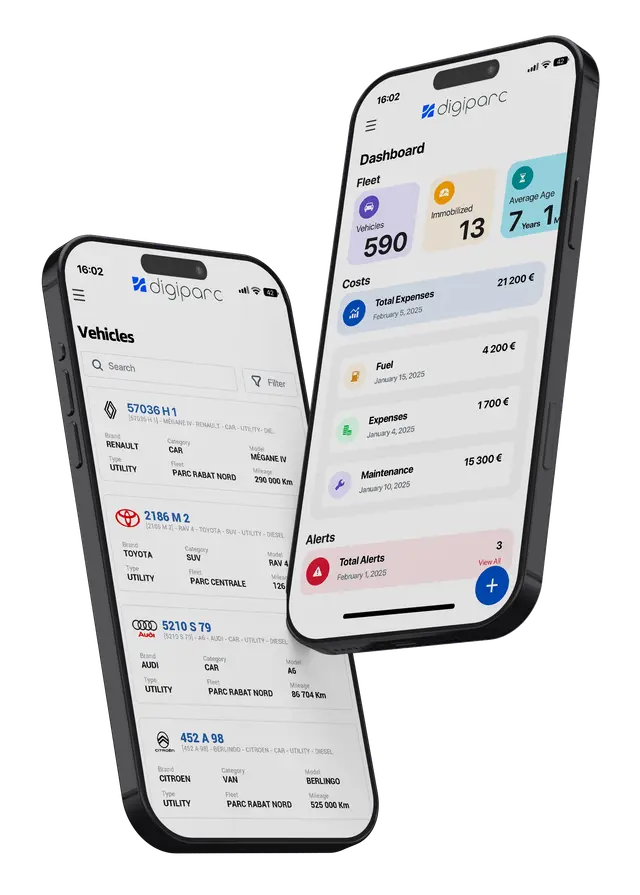
The DIGIPARC transport management and planning solution allows you to plan and optimize your transport operations both in terms of the service provided to your customers and in terms of operational performance. It helps to simplify regular flows, to manage schedules efficiently, and to control all aspects related to the car fleet.
We work closely with clients from different sectors of activity, including the transport industry, distribution and others, the objective is to have automated management in terms of planning and help them make choices that correspond to their needs.
Transportation planning is the process by which carriers determine with what means of transportation and at what time, items will be transported via a particular route. The trick is to choose these options from all the available alternatives that provide the best delivery service at the lowest cost to the business concerned Transportation planning comes in all sorts of forms and levels of complexity. Transportation planning at the operational level involves planning routes and organizing optimal journeys. This is a complex puzzle for which most companies use special software. The planning result can be automatically transferred to the drivers using this software.
In this video we will see how vehicle planning is carried out and how deliveries of goods to customer sites or to predefined points of interest are managed.
For this tutorial, we will take the example of the site management activity and see how the equipment and human resources are allocated to the different sites. It should be noted that this process can be applied and adapted to any activity, for example, in the case of goods distribution, the movement of a vehicle and a driver to a customer site can be planned in advance.
Before starting the planning phase, we first start to supply the basic data, that is to say the configuration of all the information useful for the management of our activity. For this example case, we specify the list of customers, the names of the sites, products and more.
This step is very important, it helps us to keep a very rich database, bringing together information helping to promote internal communication, the simplification of processes, as well as operational monitoring of the activity.
To do this, we go to the reference menu, at the level of the “transport” block, we start by specifying the types or families of products, this involves specifying the main goods or that we deliver to customer sites. To add these, click on the plus button, then type the corresponding name, then save. Here at the list level, we find the operation that we have just created, with the possibility of searching for any element using this filter.
However, in the case of other sectors of activity, for example in the case of a plastics production and distribution industry, we can proceed to a classification by type, that is to say we can find for example the PVC family, polystyrene, polypropylene, etc.
Also taking the example of the food industry, we can find the family of cereals and vegetables, meats, dairy products, etc.
Another example, for the kitchen utensil manufacturing industry, we find glassware, cutlery, porcelain, etc.
Once the product types are well populated, we then access the second block, this is the products. These are classified by family or type. That is to say, we can have several products belonging to the transport product type, others to the sand category, etc. To add, we click on more, at the level of the displayed form, we fill in the required fields, namely the product code, its name, unit and the type to which it belongs, then we save the operation.
If we operate for example in the kitchen utensils industry, we can find at the level of the glassware and porcelain family the following articles: Dishes, plates, tea sets, etc. These articles can be referenced by assigning them unique codes and designations.
We find on the display table an exhaustive list of products, classified by type, you can easily search for an item using this filter by typing only the first letters.
We return to the transport repository, now we go to the construction site block, this interface allows us to list the construction sites of all our clients, as well as other information. To do this, click on the plus button, at the form level, you fill in the necessary fields, such as the name of the site, the client and the date of creation, you can also complete the form with other information, such as the site manager, his contacts and more. It should also be noted that this step of creating sites can be done either manually or can be imported using the purple button displayed at the top right. To proceed in this way, we click here, we download the canvas, at the level of this excel file we take all the data, once this action is completed, we return to the same button, this time we click on “next”, then we attach our file, now we just have to check if everything is good and that no pattern has been displayed, if the verification is done, we then click on “import”. There you go, we see that our file has been included on the system, at the top we find a summary showing the number of records created with the possibility also of searching for any desired element.
Indeed, in the case of other industries, we can use the same menu, giving it another name (Example: Customer points of interest), and at this stage, we can enter all the delivery sites by customer. This will help us list the addresses and unloading points of all accounts and consolidate their information.
Trip planning
Once the repository data is correctly populated, we can now move on to the vehicle planning section.
To do this, we first go to the assignment management module. This menu allows us to link each registration number to a driver over a defined period, thus assigning it to a zone, to a customer, to a construction site and more. To start, click on the more add button.
In the form displayed, we select the vehicle we wish to assign, then the driver. Subsequently, we mention the start date of assignment, the start mileage, we can even attach a document justifying the assignment of this vehicle.
At the block level at the bottom, you can put an optional comment describing the condition of the vehicle. Let's then move on to the second part, on this section, we complete the information related to the area to which we wish to assign this vehicle, the customer, and finally the site.
If you notice, the drop-down list of sites depends on the chosen client, this allows you to further simplify the search in order to display only the sites created by client. Indeed, in the case of another sector of activity, we can have a list of all the sites or points of interest per customer, that is to say we can deliver to a customer to one or more addresses.
We finish by recording the operation, by searching for this number in the filter, we can visualize our operation at the level of the main list, we can clearly see that this planning is planned for the date of 09/28, displaying the information of the vehicle, the driver, the customer, etc..
Now that the assignment is made, we move on to the second step which consists of entering the planning data. To do this, we go to the transport module, then we click on the “Programming” sub-module.
At this interface we find all the data that was previously entered in the assignments menu.
However, there is a program which is triggered every midnight, it allows the data of the affected vehicles to be loaded day by day and automatically. You should also know that the planning module is synchronized with other menus of the solution, such as the maintenance management module and the administrative paper management module.
If a vehicle concerned by the assignment is broken down or one of its administrative documents has expired (example: expiration of insurance), at this stage, during the execution of said program, there is a whole arsenal of commands which are launched in order to browse the statuses of all the assigned vehicles and check their availability for the planned deliveries. This allows us to alert the planner in advance, and to know if the scheduled vehicles are in good condition to carry out the predefined journeys, if a vehicle ever encounters a technical or administrative problem, we therefore cannot authorize it to deliver on the planned date, and also allows us to take the necessary measures and actions to consider other solutions.
As mentioned, this automatic program allows you to see if the vehicles will be in good health in order to assign them to the planned missions. We see in the display that each registration number carries a status.
Certainly, we find the one corresponding to the technical and administrative stop, this means that the vehicle is in the garage and at the same time one of its administrative documents has expired. Furthermore, for the "administrative stop" status, this explains that the vehicle is in perfect condition, but its administrative papers are not up to date. Thus, we have the "technical stop" status, which means that the vehicle has a maintenance operation scheduled for the same delivery date, but on an administrative level, its papers are up to date.
Once the check is done, at this point we can start planning. Please note, when generating these statuses, we will not be able to plan vehicles with the problems mentioned and only be able to program those available. For this video, we will deactivate this control in order to allow the planning of all personnel numbers, regardless of the status indicated.
Now we can proceed with planning. On this programming table, we find a list of personnel numbers which were the subject of the assignment during this date of 09/28. We therefore only have to manually complete the rest of the information, namely the customer we wish to deliver, then we select the construction site or the site corresponding to the chosen customer, then the product. On the same line, we indicate the number of trips, as well as the number of delivery notes, we note that the line takes on a status of “BL received”, this means that the planning agent has entered the BLs planned in this period with this customer.
Next, we specify whether fuel, toll and other costs are included, if so, we simply check said fields, then we save our operation.
After checking the planning data, we can now move on to entering the delivery slips, these are synchronized with the programming menu, we therefore go to the delivery slip interface, we click on add, at the form level, we mention the date which corresponds to our planning, which is 09/28. Then, we select the client and the site.
We then notice that the BLs configured in the planning interface are automatically displayed above. You should know that the 2 vouchers displayed correspond to the number indicated by the agent. Of course, it should be noted that these BLs are forecast and may not correspond to the actual number of BLs, i.e. it may be that on the day of delivery we only had one delivery instead of two. If this is the case, we simply delete an operation and leave only one record. After this action, we can now complete the information on the voucher, we have the vehicle, the product and the driver which are automatically generated, so we only have to enter the other required fields, namely the voucher number, the quantity delivered, the unit, the price, and other information linked to the toll, quantity of diesel consumed, etc. Before validation of the line, we also have the possibility of attaching the BL for greater traceability. If everything is good, validate the operation with the green button, then click on save.
On the table we can clearly see the operation we have just done, displaying the main information, namely the customer, the site, the product, etc.
Now if we return to planning, we see that the field corresponding to the BLs entered has been pre-filled automatically, this information will allow us to carry out analyzes in order to check if the forecast BLs correspond to those which were entered in the delivery notes menu.
Likewise for consumption costs, in each trip there are diesel and highway costs, if these costs are the subject of the delivery note, we will then see that the fuel operation is automatically created in the fuel management menu carrying information on the voucher number, the registration number, the date and the quantity consumed.
The same thing for motorway costs, for each toll, you can configure its price, then the price is calculated according to the number of passages. In the voucher from earlier, we find ourselves with two tolls, or two number of passages each.
We notice on the motorway fee management menu that two motorway vouchers have been automatically created carrying information on the BL number, the vehicle, the toll, the amount and others. However, to configure the toll rates, we go to the consumption repository, then we click on “motorway toll”, then the plus button to add, at the form level, we fill in the necessary fields, namely the name of the toll and the rate. After registration, our toll is displayed in the list, this step is very important, it makes it easier for us to monitor the highway costs for each delivery note and allows the automatic calculation of these without being able to envisage manual entries each time.
Let's now move on to another menu of the planning module, this is RECAP. The latter gives a global view of all deliveries made by customer and by product over a specific period.
We always take the example of the same customer, then we choose the product and the site, then we go to the block on the right to select a period. By choosing the start date and the end date, we see that the delivery notes entered during this date range will be automatically displayed at the bottom. For this example, we only have one BL. In the event that we have several vouchers, we can at this stage proceed to a selection of the vouchers which will be the subject of said RECAP. It is then indicated whether diesel and toll costs will be invoiced or not.
In fact, this summary corresponds to a report which will be sent to the customer, it groups together the deliveries made in a period and also contains information on the products delivered, the costs and the total amount to be invoiced.
However, this summary can go through several stages before its final invoicing, that is to say, its validation must absolutely go through several levels. We note that the recap during creation takes the status “issued”, that is to say the report is sent to the client, then “received”, i.e. the client acknowledges receipt of the communicated Recap, then “BC received”, at this stage the client checks the conformity of the delivery notes appearing in the recap and then gives his voucher for approval at the Recap level, then the status “Logistics control”, at this stage, we check whether the logistics procedures are properly completed, finally the Recap switches to “Financial Control” status, to validate whether the Recap could be subject to a final invoice.
On the list, by clicking on this field, you can view the history of all statuses, with the date and time of any operation, this helps us keep traceability of each step in order to know if the process was completed within the set deadlines.
During the final control and verification of the elements of the Recap, we can therefore proceed to invoicing. On the same module, we access the invoices interface, then click on the plus button displayed at the top right.
On the form, you fill in the required information. We have the invoice number, this is automatically generated by the system, but if we have specific numbering, we just have to enter it manually. Then, we select the client, the site, the due date and we determine the period that we wish to invoice for this client, we then notice that the RECAP corresponding to this chosen period is automatically displayed. Of course, we may have several RECAPs to invoice, so we will have the possibility of checking only those which will be the subject of invoicing.
Afterwards we can attach the final invoice. Certainly, in the additional information block, we check if we wish to display the invoice printout.
Visibility of VAT, vehicles and delivery notes, etc. After filling in the necessary fields, click on the “save” button. On the list, before printing said invoice, you can now preview it in order to check if the elements are correctly communicated in the invoice. You can return to the invoice at any time to complete the missing information. To do this, click on modify, at the form level you specify the fields relating to the analytical destination and the charge number, then you choose whether or not these will be visible in the invoice. We save the modifications made, by viewing the invoice a second time, we will see that the elements have been updated.
In fact, invoices can be edited independently of the Summary. That is to say, we have the possibility of freely creating an invoice, to do this, we click on the add button, it is the same form that we have just filled in a few moments ago, we fill in the basic fields, then on this block, we check “free invoice”, we then notice that elements will be added automatically after having checked this field, in particular the delivery note numbers, registrations and purchase order numbers. We manually specify the information that will be visible in the invoice. Also, when choosing the free invoice, there is a table which is displayed at the bottom, on the latter, we can freely enter as many items, indicating the unit price and the quantity of each element, we then validate our line with the green button. If you want to add other articles, simply click on the plus button. We finish by recording the invoice.
Likewise for the normal invoice, we also have the possibility of previewing the free invoice that we have just edited in order to check if the information is compliant. The invoice has been created on the list, in the recap at the top, we can visualize the number of recordings or invoices edited, with the possibility also of filtering with several choices, in particular the filter by customer, by period, by invoice number, etc..
The planning video is complete, thank you for watching until the end. Also for your information, we remind you that this process could be adapted and aligned perfectly with other industries that wish to automate their end-to-end fleet management process and simplify the different flows linked to vehicle planning.